
Why don't customers see any appointments?
Your booking page is online, but a customer reports: "There are no appointments." In almost every case, one of ten settings is behind it. Work through the list from top to bottom – the most common causes come first. For each point you'll find where to look and what to change.
Quick test
1. The property is not active
Symptom: The booking page opens but shows no times. Everything looks normal in the calendar.
Check: Take a look at the properties list on the left of the calendar: next to the name of a property that is not active there is a play icon (▶). Clicking it opens the Activate resource booking dialog. Alternatively, open the property's menu and select Appointment booking - Settings: if a channel shows the notice Resource is not active (1), no ticket has been redeemed or the activation has expired.
Solution: Activate the property – an activation is valid for 30 days. Whether new properties are activated automatically and automatically renewed after expiry is set under Settings → Process settings → Activation behavior. For everything else, see Tickets and Activation.
2. There is no availability or bookable appointment
Symptom: The property is active, yet the appointment list is empty.
Check: Customers can only book within time ranges you have released – either via Consultation Hours and Working Hours, a one-time availability, or fixed bookable appointments. Check the property's calendar for the coming days: are there availabilities or bookable appointments there? Do they perhaps lie only in the past, or not until a few weeks from now?
Solution: Use the property's menu to create a time range with Offer available consultation time or fixed appointments with Set bookable appointments. When saving, check that the bookable announced switch is turned on – if it's off, a personal appointment is created that customers cannot see.
3. No appointment type matches the property
Symptom: Availabilities exist, but the booking page offers no appointment type or no times.
Check: An availability offers the appointment types set for it under Bookable Appointment Types: either the Property defaults or a custom Selection. If it is set to "Property defaults", the property needs at least one appointment type with the Standard checkbox set – check this on the Appointment Types page. A custom selection on the availability, on the other hand, also works with appointment types that otherwise don't belong to the property; the same applies to individually predefined bookable appointments, which always have a fixed appointment type (see Standard Appointment Types).
Solution: Set the Standard checkbox on the property, or in the availability under Bookable Appointment Types choose a custom selection with the desired appointment type.
4. The appointment type is longer than the time range
Symptom: There is an availability, but no time within it is offered – or only the first one.
Check: timum only offers times into which the full duration of the appointment type fits, including the buffer time before and follow-up time stored on the appointment type. A 60-minute consultation within a 45-minute consultation slot produces no bookable time. The availability's interval additionally determines the grid in which start times are offered.
Solution: Extend the time range, or shorten the duration or buffer times of the appointment type.
5. The lead time is too long
Symptom: Times for today and tomorrow are missing, later ones are there.
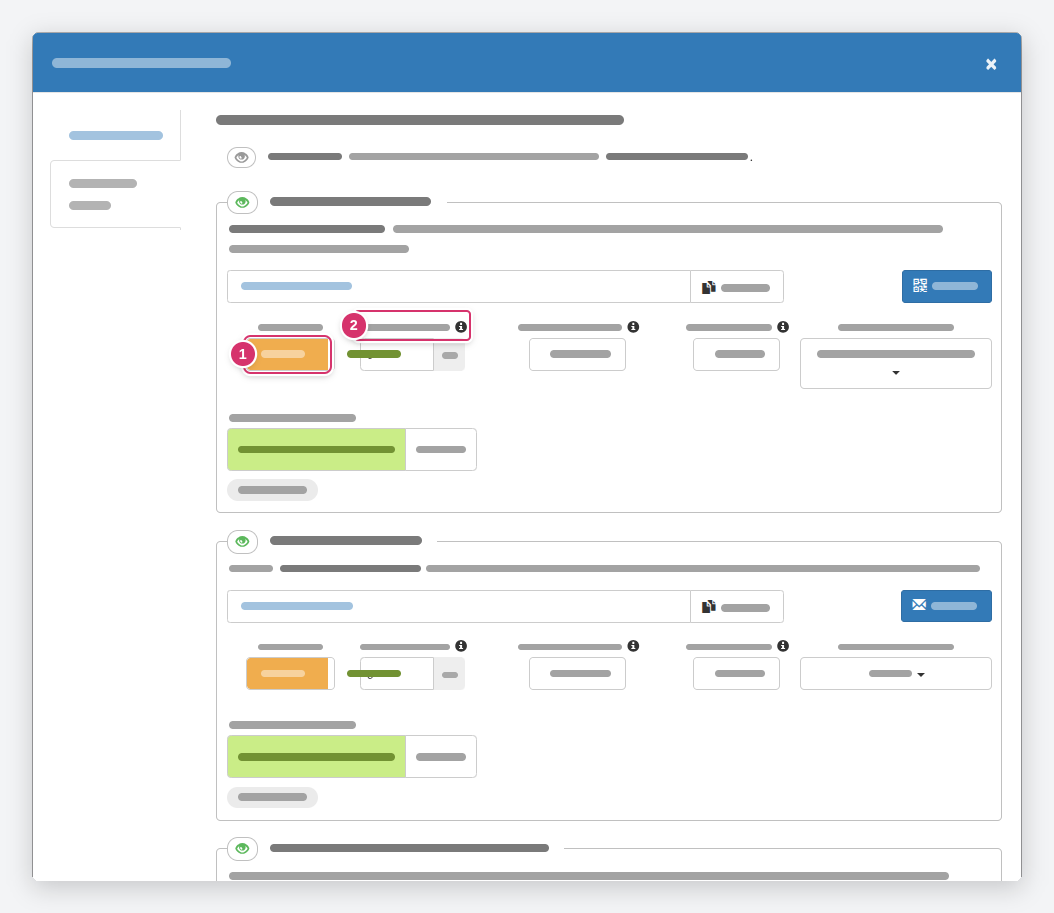
Check: The lead time (3) defines how many minutes before the start an appointment must be booked at the latest. At 1440 minutes, appointments within the next 24 hours are no longer bookable. You'll find the field per channel in Appointment booking - Settings.
Solution: Shorten the lead time in the affected channel. Change the default for new properties under Settings → Process settings.
6. The channel is set to "requestable"
Symptom: Customers see times, but the button reads Request Bindingly instead of Book, and the appointment doesn't appear in the calendar after clicking.
Check: This is not a malfunction, but the channel's booking type (2): with requestable, the booking lands as a request in your sidebar and only becomes binding once you accept it (see Request vs. Direct Booking).
Solution: Set the booking type in the channel to bookable if customers should book directly – or process the requests (see Handling appointment requests).
7. Occupied appointments are hidden and everything is fully booked
Symptom: The page is empty even though there are many appointments in the calendar.
Check: The Occupied appointments field in the channel controls whether already booked times are shown as "occupied" (visible) or disappear completely (hidden). If all times are booked and the setting is set to hidden, nothing remains.
Solution: Create additional availabilities – or set it to visible, so customers see that demand is high.
8. Gapless allocation restricts the selection
Symptom: Only one or two times directly next to already booked appointments are offered.
Check: If Gapless allocation is Enabled in the channel, new appointments may only directly follow existing ones so that no gaps arise. The first customer of a day sees all times, subsequent ones only the adjacent times (see Gapless appointment scheduling).
Solution: This is intended for viewing tours. Otherwise, set to Disabled.
9. The property is hidden
Symptom: The property's booking link works, but the property is missing from the overall calendar of your Provider Calendar and from Booking Channels.
Check: Right at the top of the Appointment booking - Settings dialog is the Visibility (1) line with an eye icon: "The property and available appointments are visible / hidden." Hidden properties do not appear in your overall calendar (timum.de/your-name) or in bundled booking views.
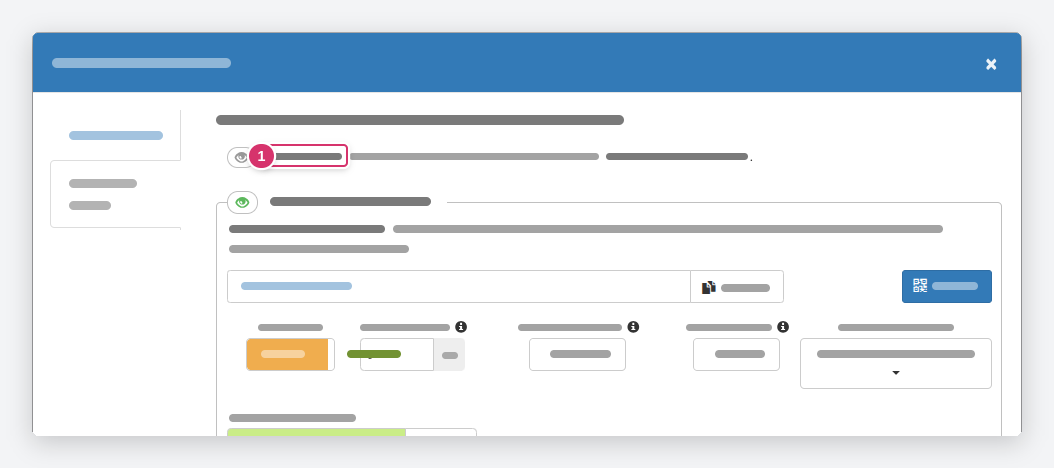
Solution: Click the eye icon to show the property again. The In Website Plugin Views and Your Overall Calendar channel additionally controls the settings with which the property appears there (see Resource Channels).
10. The client group is closed
Symptom: Prospects who are not known to timum cannot book; regular customers can.
Check: Under Settings → Process settings → Client Group, the setting is either open (the usual setting: anyone may book) or closed (only regular contacts registered with timum, for example for associations or closed groups).
Solution: Set it to open if new customers should be able to book.
11. The customer has the wrong link
Symptom: One customer sees different times than another – or none at all.
Check: Every property has several booking links with their own rules: the Standard Booking Link, the Second Booking Link for selected contacts, and links from the appointment selection, which contain only the selected appointments (see Exclusive Appointment Invitation). A selection link no longer shows anything once the selected appointments have been booked.
Solution: Check which link the customer received and send the right one. You can copy each channel's link in Appointment booking - Settings using Copy.
None of this applies?
Then get in touch with our support team with the booking link and the name of the property – we'll take a look at the settings together.